· Pauline · How-to · 8 min read
Don't Wait for the Support Call: Proactive Engagement with Customer Insights – Journeys
What if the organiser reached out first, not with another reminder, but with a conversation about whether you need help? Here's how Customer Insights – Journeys and Dynamics 365 Contact Center can orchestrate that outreach.

Please be aware: The content is accurate at the time of creation. It may be that Microsoft has made changes in the meantime.
You’ve registered for a technical workshop. The preparation email has arrived, and there’s a checklist of things to set up before the day.
But what happens if you get stuck?
You could contact the organiser. Or leave it until the workshop and hope someone can help you then. Neither is ideal when the first session needs an environment that’s ready to use.
What if the organiser reached out first, not just with another reminder, but with a conversation about whether you need help?
That was the scenario Kristine and I explored in our Nordic Summit session. In this post, I’ll focus on the Customer Insights – Journeys side: how to orchestrate that outreach and what happens next. Kristine’s companion post will cover the Contact Center side.
What is proactive engagement?
Proactive engagement means the business starts the conversation rather than waiting for the customer to get in touch.
That could be a workshop-readiness check, an appointment confirmation or a follow-up before a technician visits. The useful part isn’t simply that we contact someone first. It’s that their response can influence what happens next.
In our session, we connected Customer Insights – Journeys with Dynamics 365 Contact Center. Journeys handles the orchestration: who should be contacted, when, and which follow-up they should receive. Contact Center handles the conversation, with an AI agent, a representative or a combination of both.
The conversation outcome then becomes input for the next journey decision.
Our example: getting participants ready for a workshop
For the workshop scenario, the goal is straightforward: identify preparation problems before the workshop starts.
The design has three stages:
- An AI-led call five days before the workshop.
- A conversational SMS follow-up if the initial call didn’t reach the participant.
- A representative-led call when further help was needed.
The participant might be ready, might need the prerequisite checklist again, or might need someone to help with access and configuration. Those are different situations and they shouldn’t all lead to the same reminder.
Before opening the journey designer
There are a few dependencies to sort out first.
Our session highlighted that Customer Insights – Journeys and Contact Center need to be in the same Power Platform environment. You also need to enable the Contact Center integration feature switch in Journeys before building the conversational steps.
The audience matters too: conversational journeys are contact-based, rather than lead- or Customer Insights – Data profile-based journeys.
Microsoft’s prerequisites also distinguish conversational SMS: it uses Contact Center’s channel, not the standard Journeys SMS channel.
You can find all details regarding the Contact Center settings in Kristines blog: Link.
Journey 1: start with the readiness call
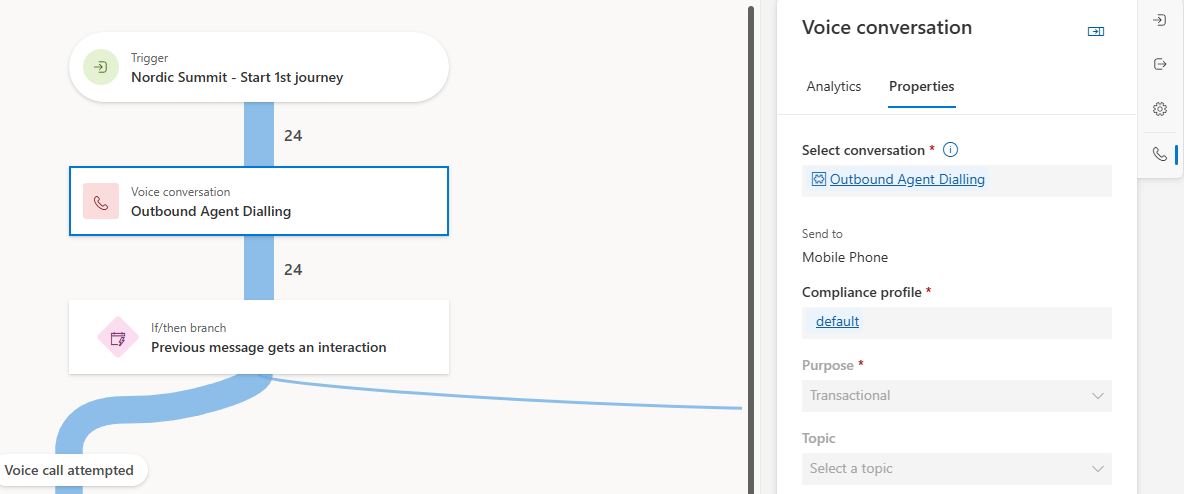
The first journey starts with the custom trigger Nordic Summit - Start 1st journey. Technically, I use a custom trigger here with an underlying Power Automate flow. The flow runs every day and looks for contacts who have registered for events taking place in five days. Of course, you can also choose a different approach to start the journey.
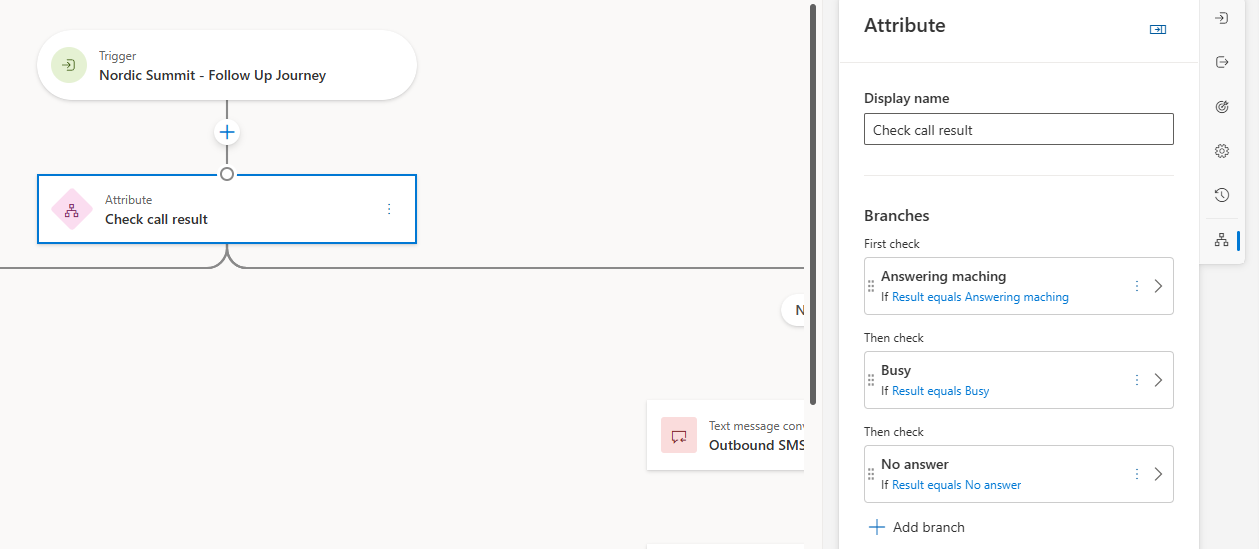
It then uses a Voice conversation step, connected to the proactive engagement Outbound Agent Dialling (or whatever you named the proactive engagement ). After that comes a branch checking the previous message’s interaction, followed by an attribute branch for the call attempt.
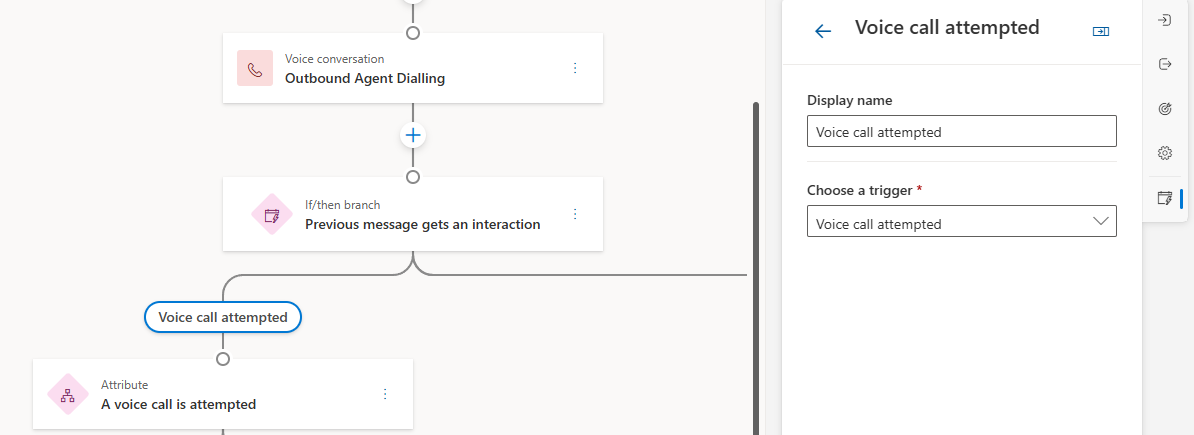
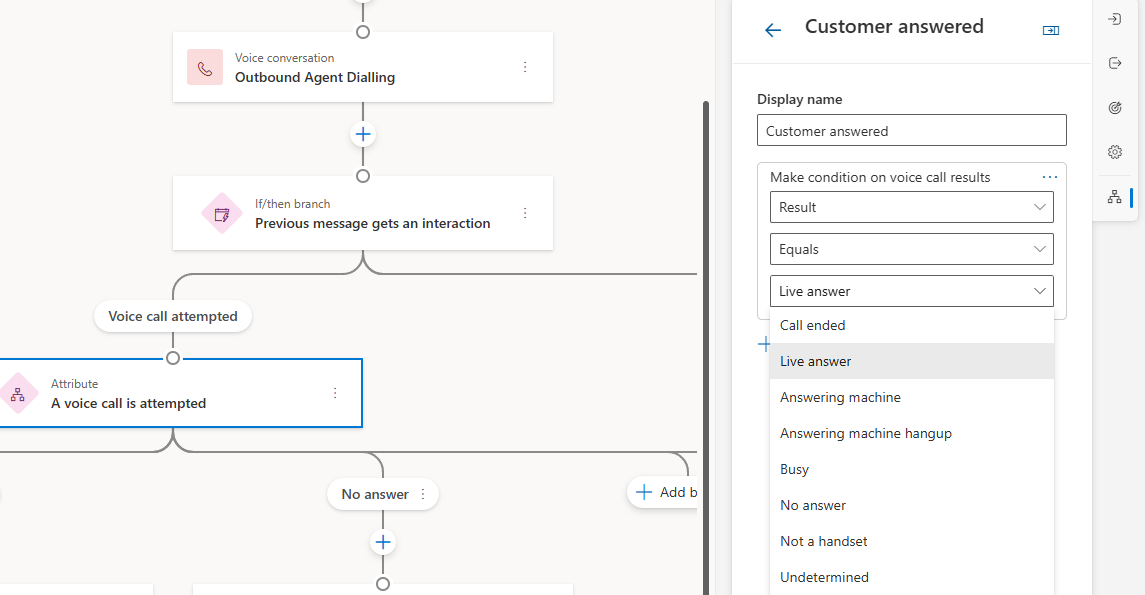
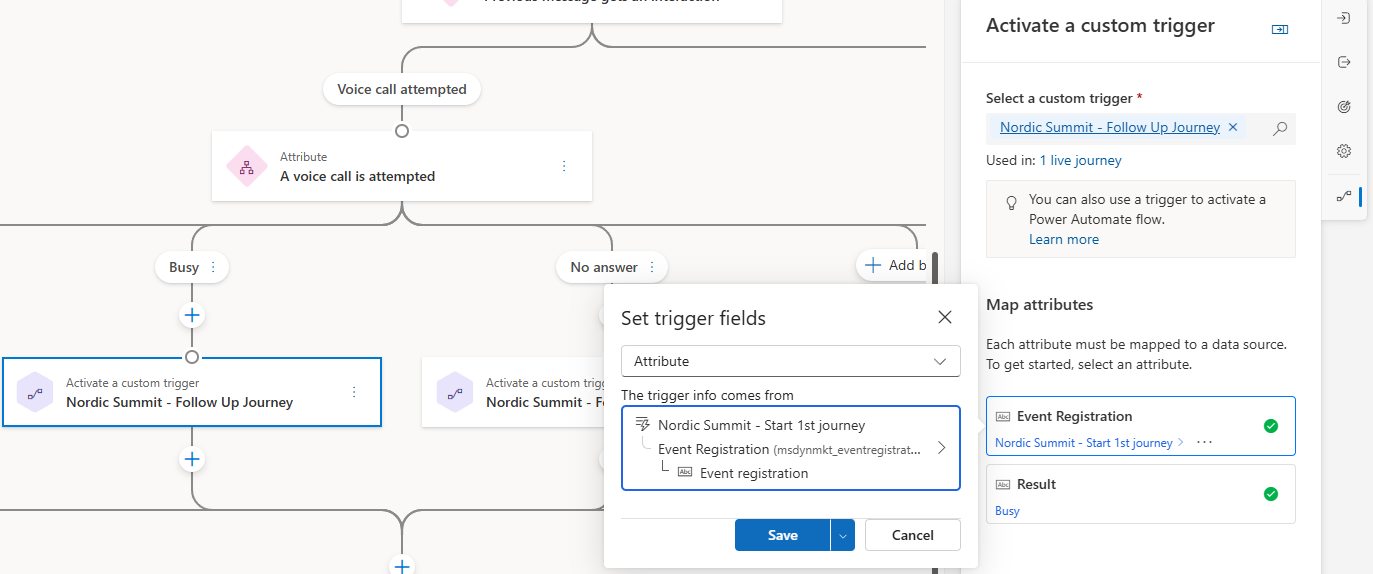
The visible result branches include:
- Customer answered.
- Answering machine.
- Busy.
- No answer.
In the demo configuration, the answered branch exits. The unsuccessful contact branches activate Nordic Summit - Follow Up Journey.
There’s an important design distinction here: a customer answering isn’t the same as a customer being ready.
For a production version, define the business outcomes you actually need. “Ready,” “needs the checklist” and “needs assistance” are more useful than treating every answered call as a completed readiness check.
Microsoft’s setup guide distinguishes call results, representative disposition codes and AI-agent attributes when designing branches.
Journey 2: offer another way to respond
Not answering a call doesn’t necessarily mean someone doesn’t want help. They might simply be busy.
The second journey starts with Nordic Summit - Follow Up Journey and includes a Text message conversation step using Outbound SMS Engagement.
The follow-up message explains that we’ve tried to reach the participant about the workshop and invites them to reply if they need help with the prerequisites.
The journey also has branches for conversation outcomes and a timeout. The timeout path activates Nordic Summit - Update Event Reg.
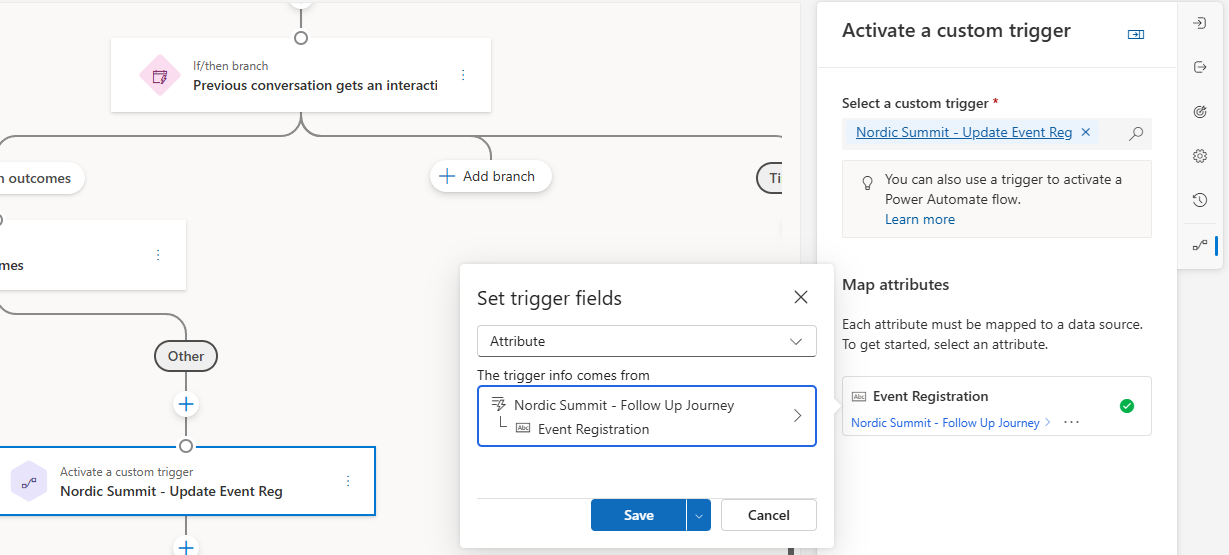
This is where the journey needs a clear stopping rule. No response shouldn’t automatically become an endless sequence of calls and messages.
Decide in advance how long to wait, whether another attempt would be useful, and when to stop. Those are journey-design decisions—not details to leave until someone receives their fourth reminder.
Journey 3: bring in a person, with context
The third journey starts with Nordic Summit - Event Reg Change.
Before the Outbound Representative Dialling voice conversation, it includes a Create a record step for a note.
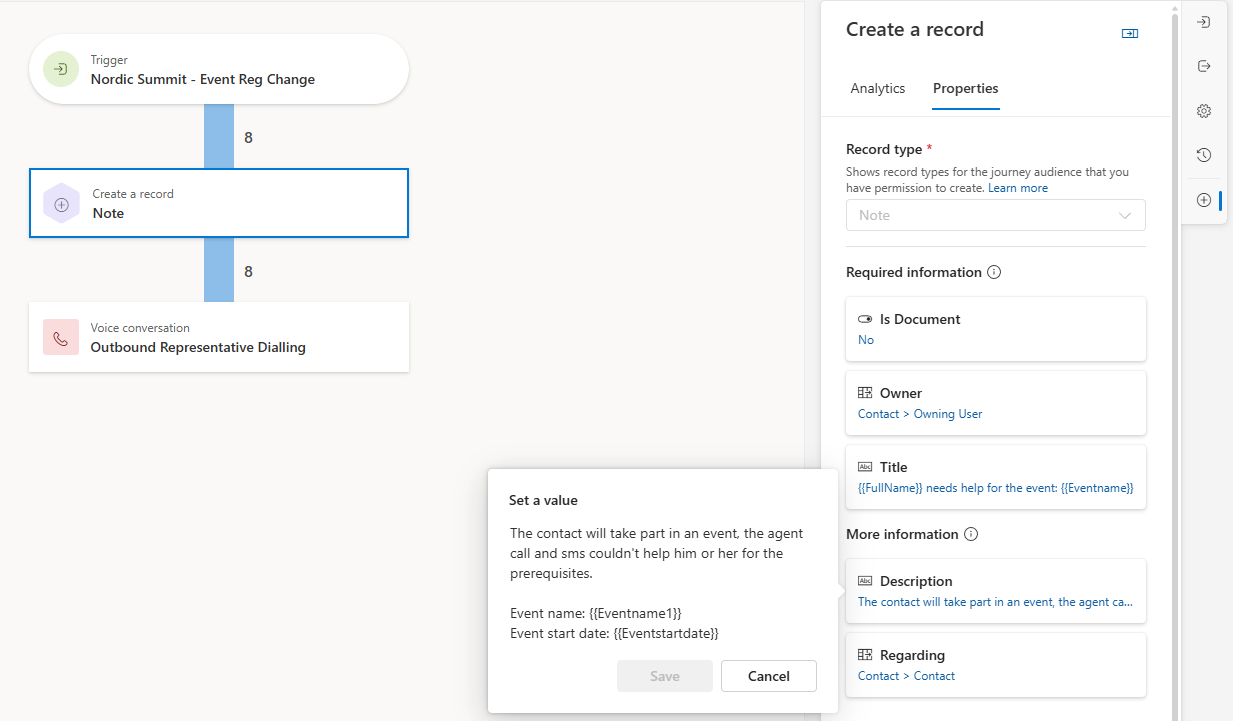
That small step deserves attention.
If someone has already explained that they need help, the next conversation shouldn’t begin with “So, why are we calling you?”
For your own implementation, consider recording:
- Which workshop the participant registered for.
- What preparation help they requested.
- Which outreach has already happened.
- What the representative should do next.
Don’t assume that adding a conversational step automatically passes all journey context into the conversation. Our session specifically called out the need to create context deliberately, and showed a note on the contact timeline in the representative workspace.
What else could we build?
The same pattern can support other situations where a reply changes the next action:
- Appointment preparation: confirm attendance, then provide preparation instructions or a route to rescheduling.
- Field-service visits: check access arrangements before a technician arrives.
- Travel preparation: identify missing documents while there’s still time to help.
- Onboarding: check whether someone has the access they need before they get stuck.
These were among the additional scenarios in our session. The common thread is that a two-way conversation adds something a one-way notification cannot.
For the workshop example, useful extensions could include a checklist follow-up, a separate assistance journey and an exit condition when a registration is cancelled.
Those would be extensions to the design not claims about what the demo already implemented.
Start with the outcome, not the call
Before building the journey, decide what “helpful” looks like.
For a workshop-readiness check, the goal isn’t to place a call. It’s to discover whether someone needs support while there’s still time to provide it.
Plan consent, appropriate contact times, fallback paths and human ownership alongside the happy path. Our session’s closing advice was to start small: one use case, one voice journey, and test by calling yourself.
Proactive engagement becomes useful when the response changes what happens next. Customer Insights – Journeys gives us a place to design that next step without making every customer follow the same path.
Personally, I really like the connection between Customer Insights – Journeys and Contact Center. I must admit that, as a Customer Insights person, Contact Center can feel like a bit of a black box. There are a lot of options and settings to get right, so I was glad to have Kristine on board. Check out her blog for any Contact Center questions you have.
In conclusion: you need a Contact Center expert to set up conversational journeys. But once that’s done, it opens so many new doors.
Do you have questions, ideas or remarks? Feel free to get in touch.


